

 Products
 Video
Video SMS Services
 Health

Router Usage Guide
Features
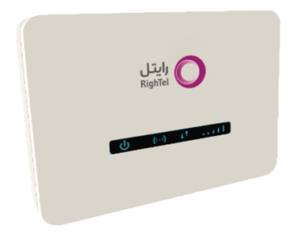
- Supports RighTel’s 4G network and the classification is cat6.
- Maximum download speed is 300 Mbps and upload speed is 50 Mbps.
- Supports Wi-Fi Transmission Standards (802.11n and ac).
- Supports dual-band Wi-Fi and provides the maximum possible bandwidth on both frequency bands.
- Simultaneous connection for up to 32 users.
- Quick and straightforward internet connectivity.
- Supports receiving Persian SMS.
- Supports roaming.
- Hardware-based wireless disablement, allowing exclusive use of LAN ports.
- Ability to Lock onto a Cellular Provider.
- Carrier aggregation.
Hardware Specifications
- Features 2 Ethernet ports.
- Supports 4G and 4.5G.
- Features 4 internal antennas.
- Dual-band (2.4 GHz and 5 GHz).
- Auto APN setup.
Package Includes
- Modem
- Adjustable Clamp
- Ethernet Cable
- Power Adapter
- Quick Start Guide
Core Components of Modem RTM-6000
- SIM Card Slot
- WPS Button
- Wi-Fi Button
- LAN Port
- Power Port (Adaptor)
- Power Button
- Reset Button

Installation and Setup Guide
A) SIM card installation
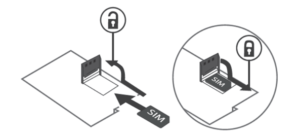
- First, carefully remove the rear cover of the modem. Then, insert the micro SIM card into the designated slot.
Note: The SIM card holder is equipped with a horizontal sliding lock for secure placement.
B) Getting Started
Step 1: Place the SIM card in the slot as shown in the previous step.
Step 2: Install the clamp under the modem.
Step 3: Plug one end of the power adapter into a wall outlet and the other end into the modem’s power port.
Step 4: Press the Power button to turn on the modem. It will start up quickly and be ready to use. (You can find the Wi-Fi username and password on a label on the modem.)
You can find the Wi-Fi name (SSID) and password on a sticker attached to the modem, as shown in the picture.

One of the features of this device is the ability to disable Wi-Fi using the Wi-Fi button. In this mode, the device will continue to function as an LTE router, but only devices connected to it via cable will have access to the network.
To perform a hardware reset, locate the Reset button on the rear of the router. Remove the SIM card slot cover and press and hold the Reset button for 5 seconds. All indicators on the modem will illuminate momentarily and blink. Wait for the router to reboot.
LED Display
According to the image below, you can use the LED indicators on the device to know the status of different parts of the devices.

How to connect to the internet
Via Wi-Fi
After inserting the SIM card, turn on the modem and wait for its Wi-Fi to be detected by your laptop, tablet, or phone. Then enter the Wi-Fi password located on the back of the device to connect your device to the router’s Wi-Fi.
Depending on the receiver device’s support for the 2.4 GHz or 5 GHz wireless network, the corresponding SSID is indicated on the back of the device.
It should be noted that RighTel’s APN settings are preconfigured on the router. By inserting the SIM card and turning on the device, if the device is within RighTel’s coverage area, it will quickly connect to the Rightel network.
You can determine the strength of your network signal by checking the signal indicator. Ideally, for optimal service, you should have 3 or 4 bars of signal strength.
Via Cable
Connect the device to your system (PC) using the network cable included in the device box. In this case, by setting the network settings to automatic, the internet connection will be established on the system.
If you wish to change the router settings, you can access the device’s control panel by entering the address 192.168.1.1 in your web browser.
Device software settings in the user panel
To make any changes to the software settings through the user portal, simply enter the address 192.168.1.1 in your web browser once your PC is successfully connected to the modem via cable or Wi-Fi. The default username and password are set to ‘admin.’
Immediately after pressing Enter, the following window will appear, prompting you to enter a new password. Please note that this password is for accessing the device’s management panel and is different from the password set for accessing the modem via Wi-Fi.
At the bottom of the Overview page, detailed and real-time LTE network information, download and upload speeds, average data usage, a data transfer chart, and a list of connected devices to the RTM-6000 modem are displayed.
To perform initial setup on the device, you can make some basic adjustments through the ‘LTE’ menu and the ‘Edit APN Profile’ submenu. Here, the defined profile name for Rightel’s Access Point Name (APN) is displayed, which does not require any changes.
If, for any reason, the desired settings have not been applied to the modem, use the factory reset option to restore the modem to its default settings.
In the WLAN section, you can manage Wi-Fi network settings and device connections for each Wi-Fi channel. By configuring this section, you can optimize your Wi-Fi network for better performance and enhanced security. Additionally, you can hide or disable any desired SSIDs to optimize power management. To apply changes in each section, select the ‘Apply’ option.
You can also modify the SSID names of each router (associated with the corresponding 2.4GHz or 5GHz wireless frequency band) and set a password for each. You can also disable either of the available wireless bands by toggling the ‘Enable’ option for each band. In this case, only the enabled SSID will be visible when searching for available networks.
Changing the user panel password
To change the password for the ‘admin’ username, which is required to access the RTM-6000 modem user panel, go to the ‘System’ menu, then the ‘Account’ section, and select the ‘Modify Password’ submenu. First, enter the current password, followed by the new password and its confirmation, then select ‘Apply’ to save the changes.
SIM card PIN code settings
By default, if the SIM card’s PIN code is enabled, the device will not connect to the network. In this case, the third LED indicator for signal strength will blink, and the modem will prompt for PIN code entry. To establish a network connection, enter your PIN and disable the PIN requirement for future use. To access the PIN settings menu, go to the ‘LTE’ menu and select the ‘PIN Management’ submenu.
In the Edit PIN Management section, selecting the ‘Enable’ option allows you to set a new SIM card PIN code. To change or edit the SIM card PIN code, select ‘Enable,’ enter the new SIM card PIN in the ‘Input PIN’ field, and then select ‘Apply’ to save the changes. Otherwise, leave this section blank for the SIM card to connect automatically. It is recommended to keep this section set to ‘Disable’ at all times.
Please note that if the PIN is entered incorrectly more than 3 times, your SIM card will be locked, and you will need to contact RighTel’s support center to unlock it.
In order to activate and use IPv6 on the router modem of the TP-Link Archer MR200, you must follow the steps below. To apply the desired settings in the home page, click on the advanced option, in the opened page, click on the Internet menu, and then click on the Create Profile link at the bottom of the page.
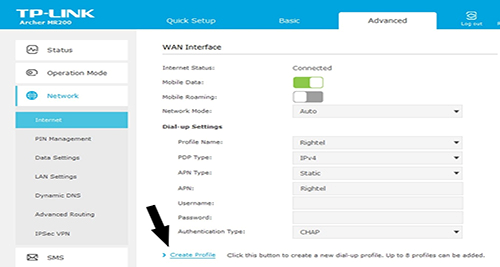
In the popup window, do the following:
PDP Type: IPv4 & IPv6
APN Type: Static
APN: RighTel
Username:
Password:
Authentication Type: CHAP
Note that there are no values for the Username and Password section.
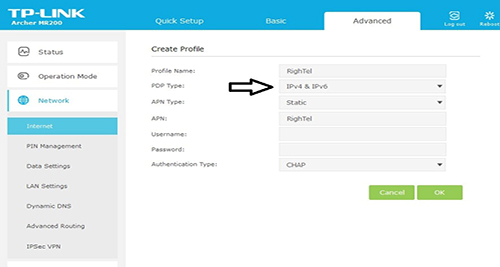
After making the settings and clicking the OK button, and also after restarting the device, you can use the IPv6 protocol of the high-speed router.